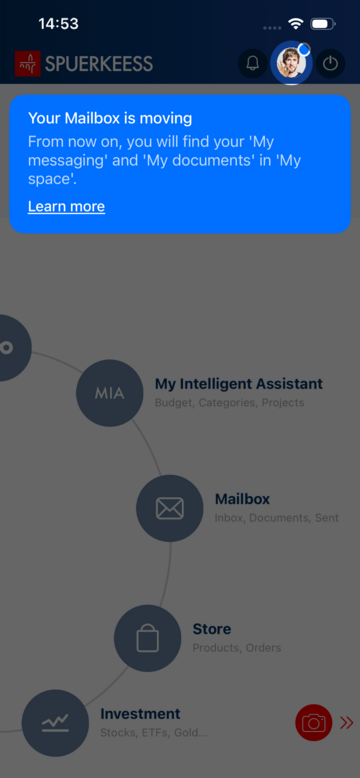
by following this step-by-step tutorial.
1/13 Open the app and click on the profile icon in the top right corner.
2/13 Select "My communications" to view your messages.
3/13 Choose a conversation from the list.
4/13 Tap the "Reply" button at the bottom of the screen.
5/13 Click on the "i" to view the sender's details.
6/13 View the sender's details.
7/13 Type your message.
8/13 Add an attachment if needed (PDF, photo) by clicking the paperclip icon, then press "Send".
9/13 Your message has been successfully sent to your advisor.
10/13 Need help? Tap the "Help Center" banner, then select a category or click "Write a message."
11/13 Fill in the subject and text of your message, then click Send.
12/13 Access your archives,
13/13 and view the details.
Did you find this guide useful?
Thank you for your participation
No results