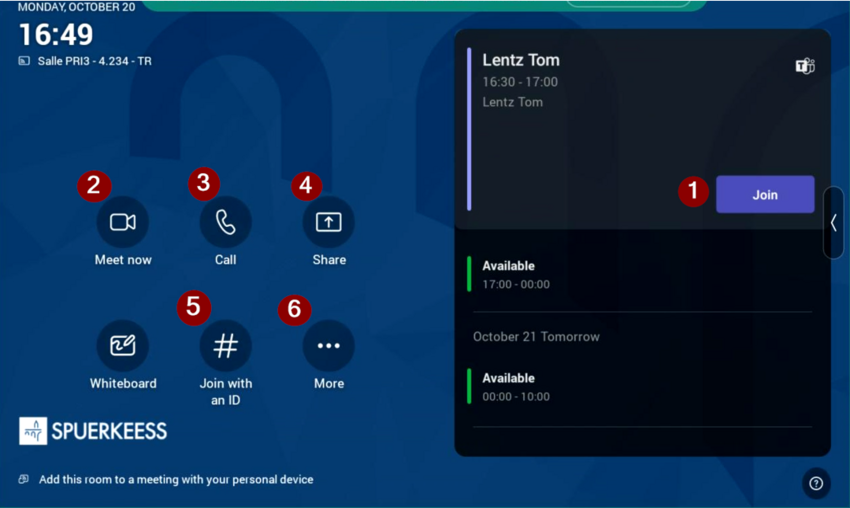
Home Screen
This is the main screen displayed on the MTR console (located on the table) when the room is not in use. From here, you can access all key features of the meeting room.
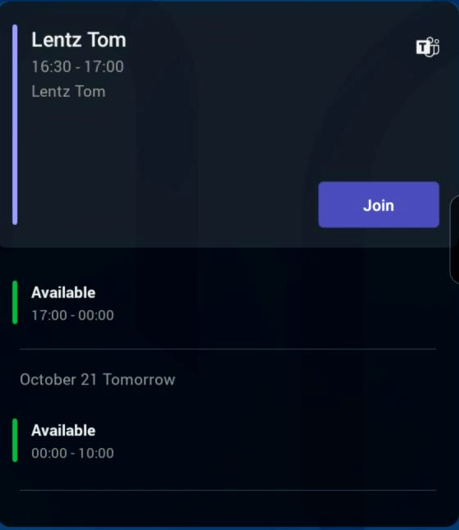
- Join a scheduled meeting by tapping the calendar entry
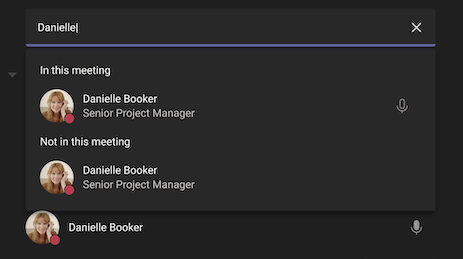
- Tap Meet Now to start an instant meeting. Enter the names of the people you want to invite.
- Tap Call, then enter the name of the colleague (Spuerkeess employees only).
- Share Content from Your Laptop
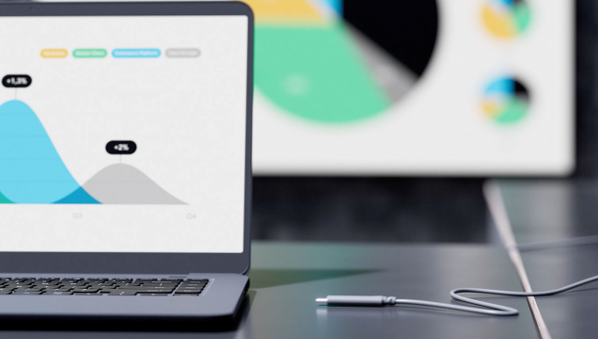
Connect your laptop using the grey USB-C cable attached to the console.
If the content doesn’t appear automatically, tap Share on the console.
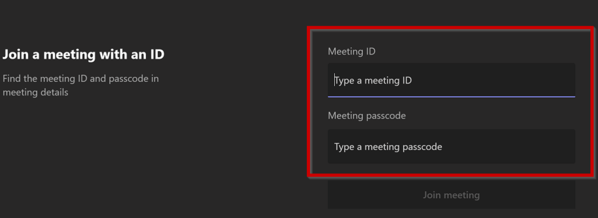
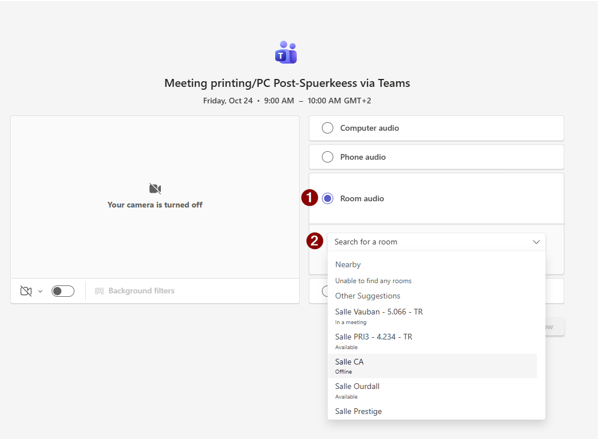
Alternatively, you can join the Teams meeting from your device and share content directly.You may also share content by joining the Teams meeting from your device - Join with an ID
Every Teams meeting has a unique 12-digit ID.
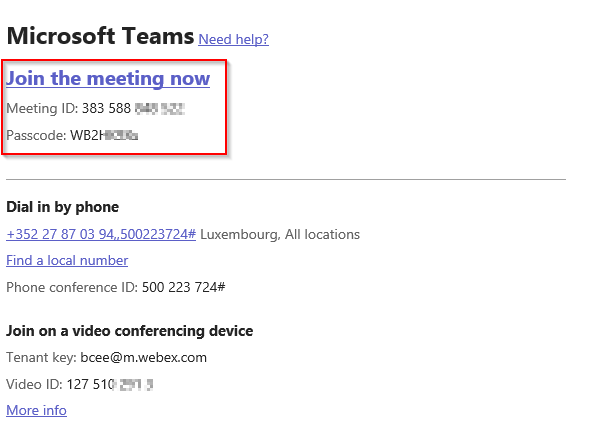
You’ll find the meeting ID and passcode in your Outlook calendar invite. - More Options
Additional settings and features are available under this menu.
|
View
|
Use it to...
|
|---|---|
|
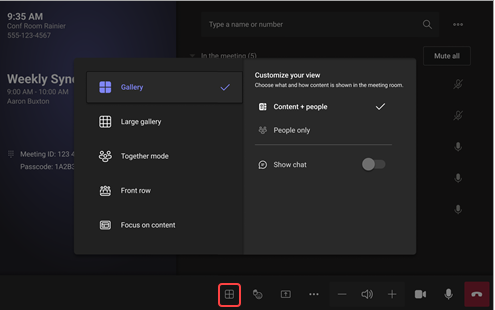
Gallery
|
Optimize the layout of shared content to make that content as large as possible, while also showing more video participants.
|
|
Content + gallery
|
When someone shares content like a presentation, Content + gallery optimizes the layout to make that content as large as possible while also showing more video participants.
|
|
Content
|
Available when content is being shared. This is the view to choose when you'd like to pay close attention to the content without the distraction of seeing people's video feeds.
|
|
Large gallery
|
View up to 49 video streams at once. Large gallery view is available when at least 9 people have their cameras turned on.
|
|
Together mode
|
See everyone who has a camera turned on seated together on one virtual background. Together mode view is available when there are at least 4 participants whose cameras are turned on.
|
|
Front row
|
Enhance hybrid meetings and provide in-room participants with greater context of the meeting. On the front-of-room display, you can see remote attendees at eye level, including meeting experiences like chat and a rostered view of participants with raised hands.
|
|
Show chat
|
Turn on the toggle next to Chat on Gallery, Large gallery, and Together mode. In-room participants can see the meeting chat sent by remote participants on the front-of-room display. However, a room device cannot send a message.
|